Understanding the Slashit Interface
Get familiar with the core structure of the Slashit interface. Here’s how it’s organized:
-
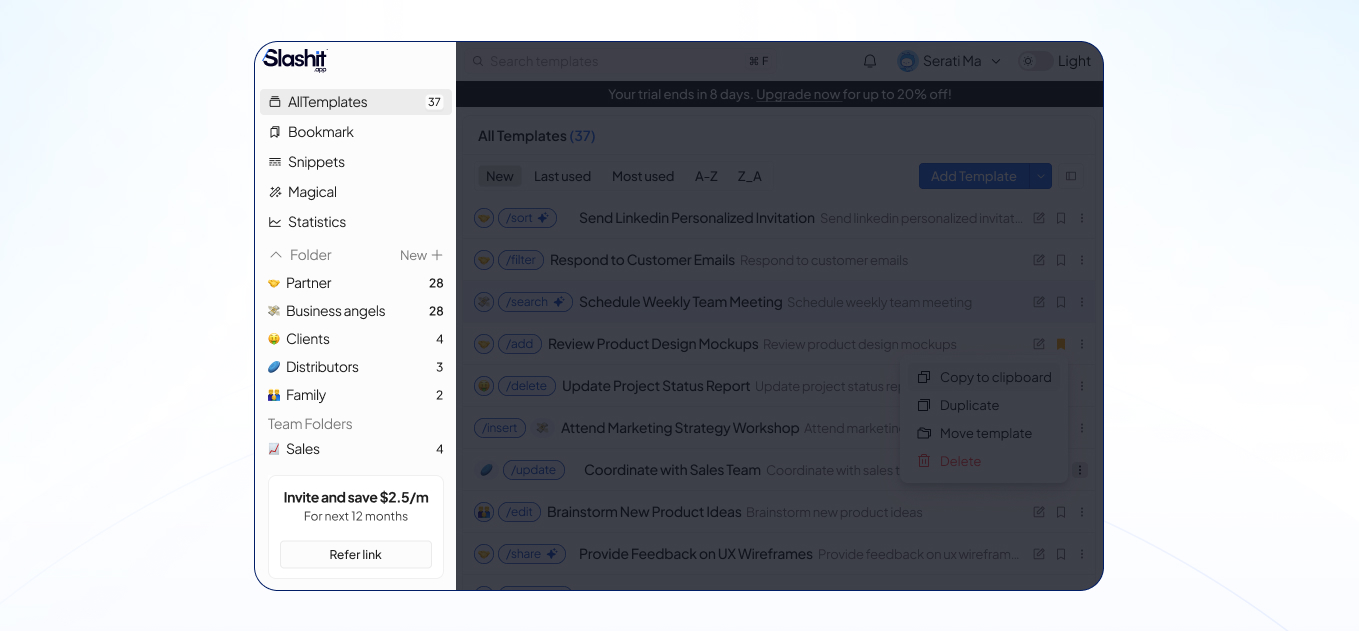
Sidebar (Left Panel)
This vertical panel is your main navigation area. From here, you can jump between all your productivity tools:
-
All Templates – View and manage all your saved templates.
-
Bookmarks – Quickly access your favorite templates or snippets.
-
Snippets – Store and reuse frequently typed content.
-
Magical – Access advanced AI-powered suggestions or actions.
-
Statistics – Monitor your productivity and usage metrics.
-
Folders – Organize templates/snippets; includes an Add New Folder button.
-
Team Folder – Collaborate and share templates with your team.
-
Invite & Refer Banner – Located at the bottom, inviting users to share Slashit with others.
-
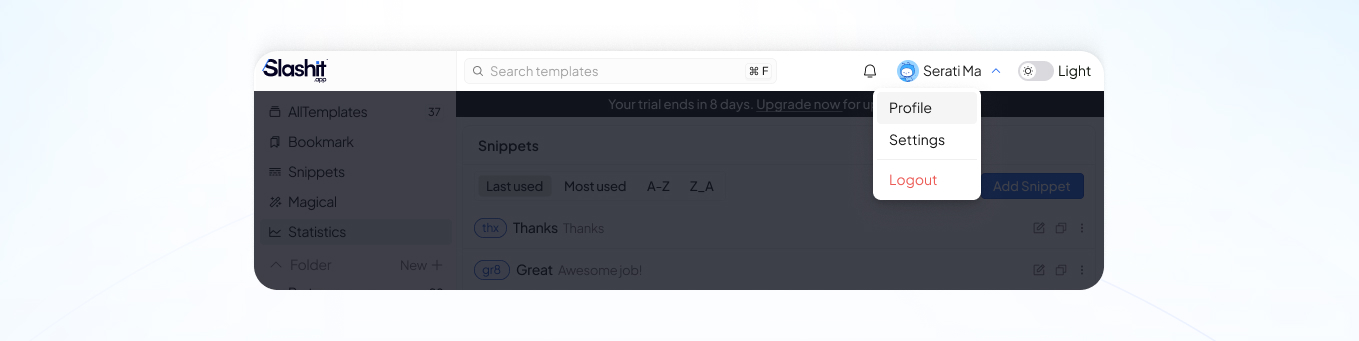
Top Bar
Positioned at the top of the app, this panel helps you manage user-level functions and system controls:
-
Search Bar with keyboard shortcut hint for quick access.
-
Notification Icon – Stay updated with product news and activity.
-
Profile Dropdown – Contains:
- Profile
- Settings
- Logout
-
Light/Dark Mode Toggle – Located beside the profile icon for instant theme switching.
-
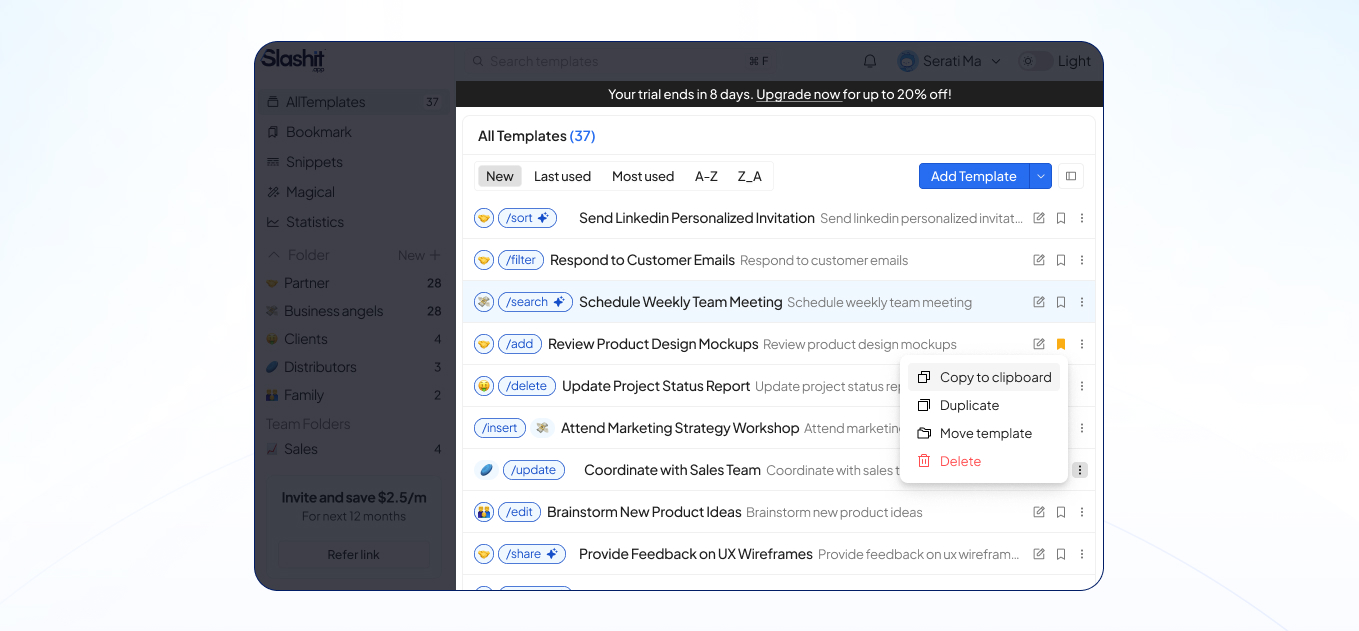
Main Workspace (Center Panel)
This is the dynamic content canvas where the magic happens:
-
At the top, you’ll see an Update to Pro notice (for users on the Free plan).
-
The rest of the panel adapts based on your sidebar selection – displaying page previews, editing tools, or statistical content depending on where you are in the app.
 Powered by ProductLift