Taskbar Panel & Shortcuts Overview
What is the Taskbar Panel?
The Taskbar Panel in Slashit is your desktop-side utility menu—accessed manually by clicking the Slashit icon in your top system bar. It’s designed for users who prefer a focused, mouse-based interaction while managing all things Slashit.
How to Open the Taskbar Panel
There’s no keyboard shortcut to open the taskbar panel.
👉 You need to click the Slashit icon in your top macOS system taskbar.
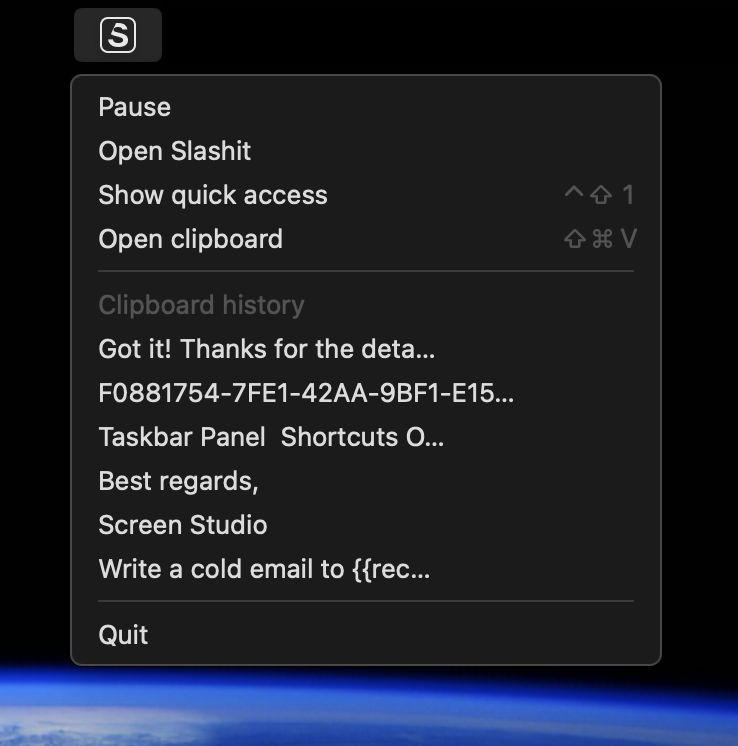
What’s Inside the Taskbar Panel?
Here’s a breakdown of the full panel view:
1. Pause / Resume Slashit
🛑 Pause to temporarily disable Slashit features—useful when you’re working in other apps and want to avoid triggering templates or magicals accidentally.
▶️ Resume when you’re ready to use Slashit again.
2. Open Slashit
Quickly opens the main Slashit app without needing to click it from the Dock or Launchpad.
3. Show Quick Access (Ctrl + Shift + 1)
A compact, efficient window view for reviewing and activating features.
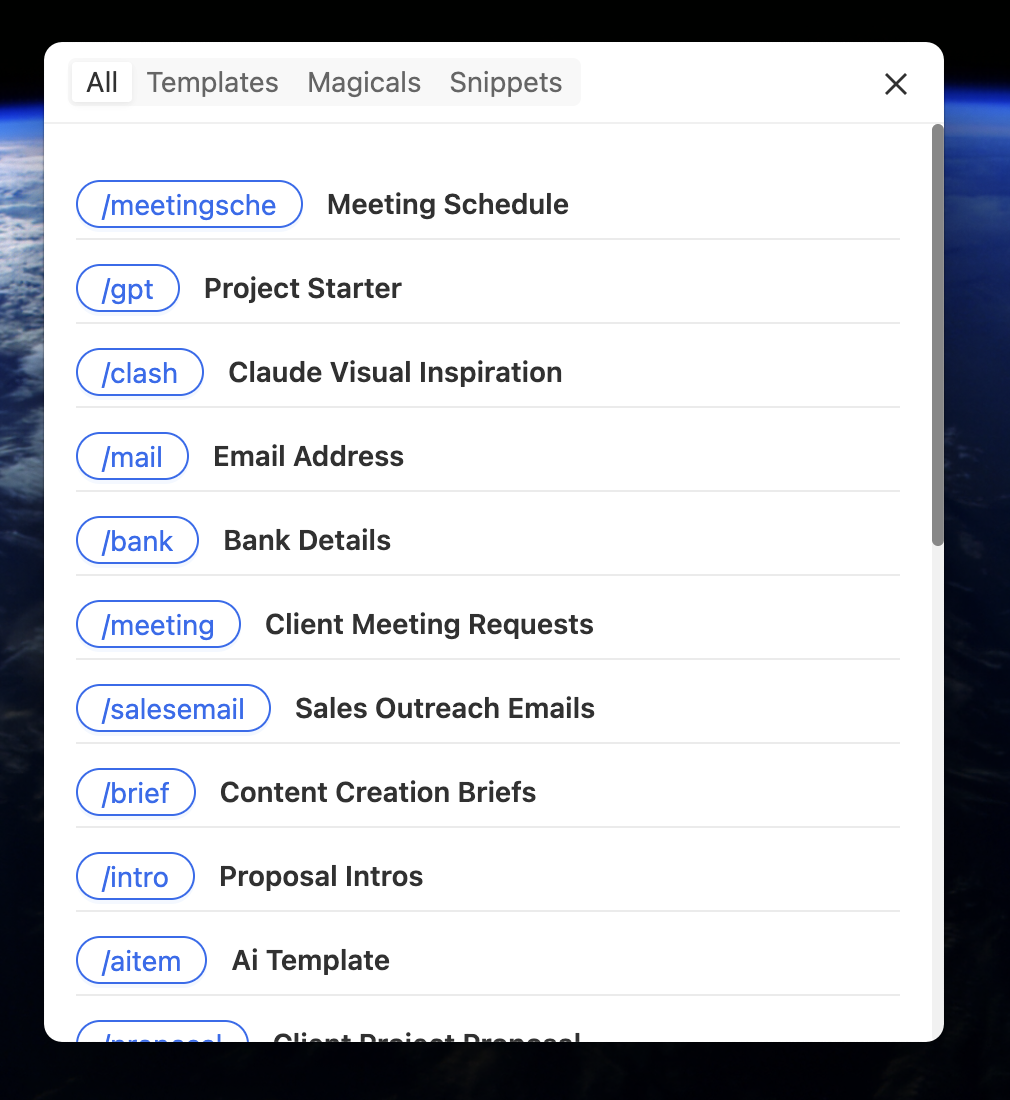
Inside Quick Access:
-
All Tab – See all Templates, Magicals, and Snippets in one list.
-
Templates Tab – View template-only items.
-
Magicals Tab – View magical shortcut commands.
-
Snippets Tab – View saved text snippets.
Currently, this panel does not support search.
4. Open Clipboard (Shift + Command + V)
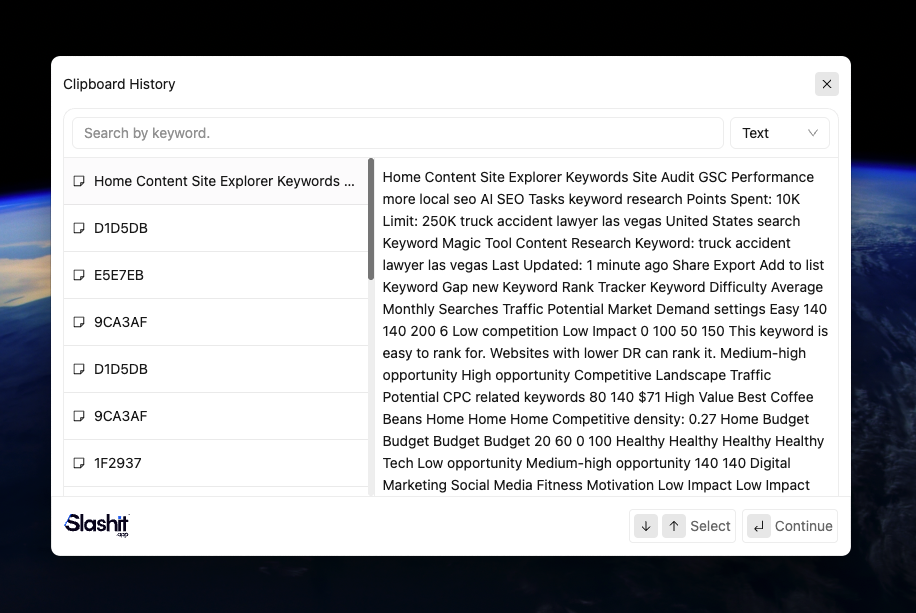
Open your Clipboard history panel with powerful tools:
-
Top Search Bar – Find specific clipboard content.
-
Type Filter Dropdown – Filter clipboard by content type.
-
Right Sidebar – Lists all saved clipboard entries.
-
Left Panel Preview – View selected clipboard content with full info.
-
Action Buttons (Bottom) – Up and Down Select, and Continue to insert content.
5. Quit Slashit
Exit the app entirely when needed.
Why the Taskbar Panel Matters
-
✅ Gives users full control of Slashit
-
✅ Lets you pause commands to avoid unintended AI actions
-
✅ Easy access to tools like Clipboard History and Quick Access
-
✅ Clean and focused experience without overwhelming UI
 Powered by ProductLift